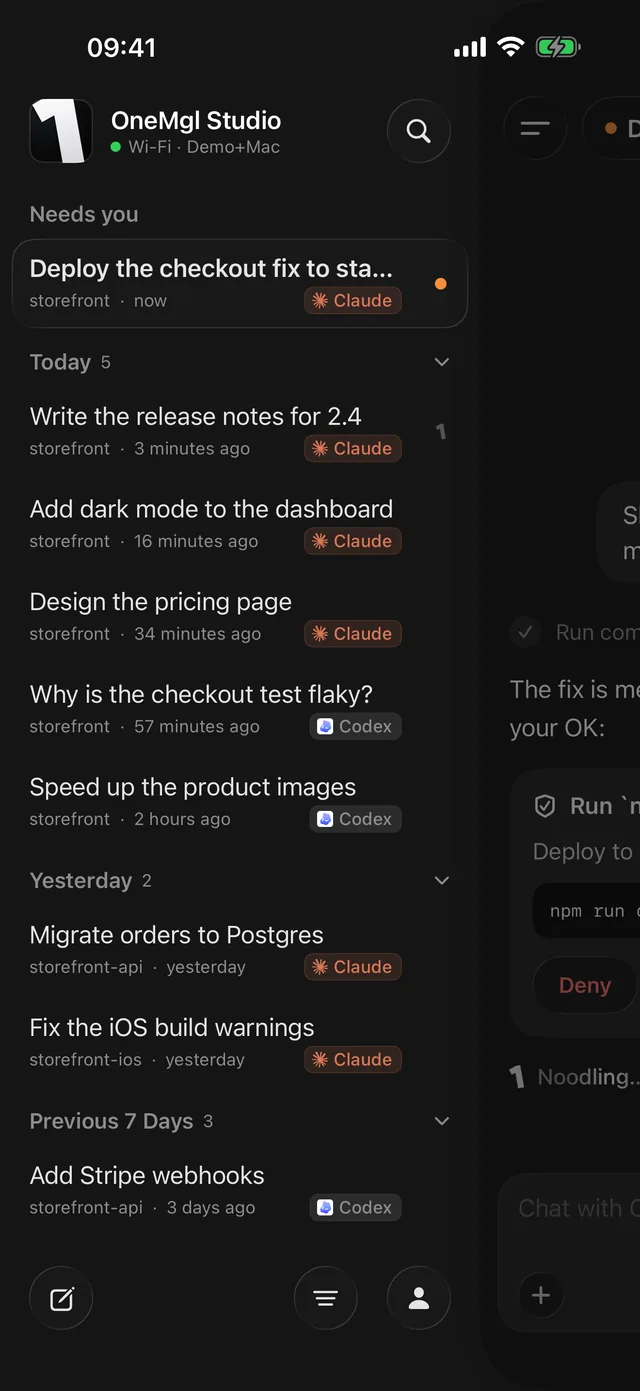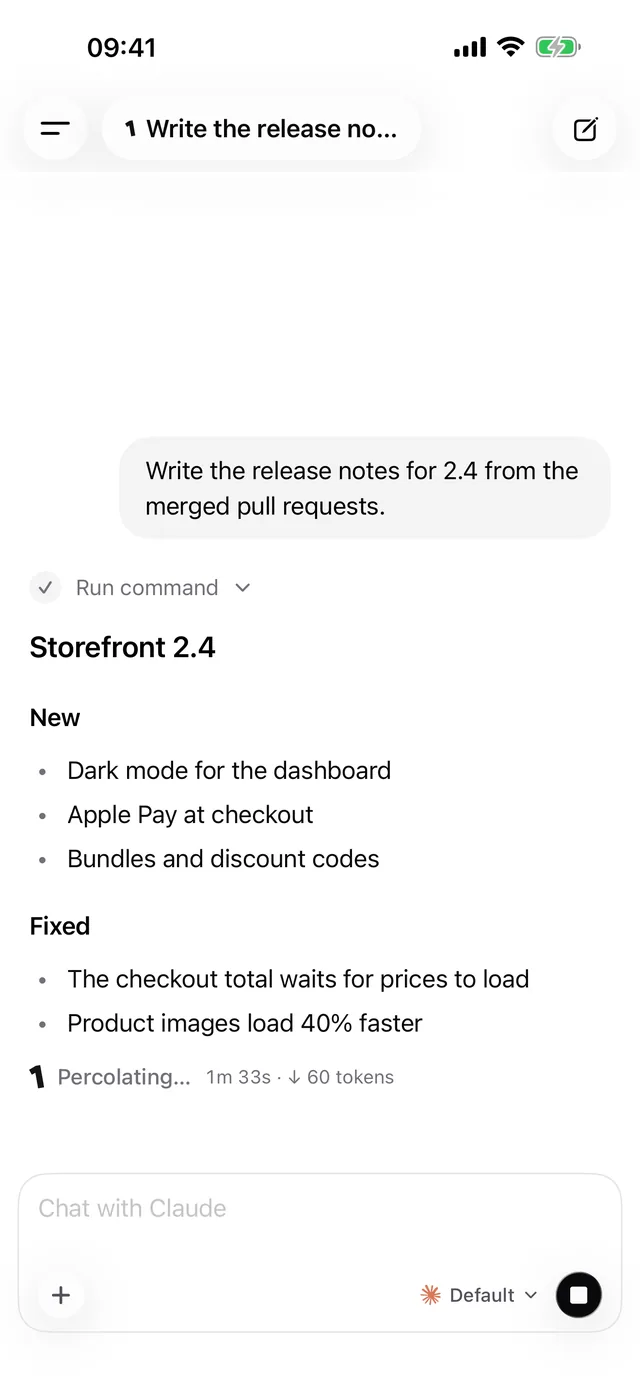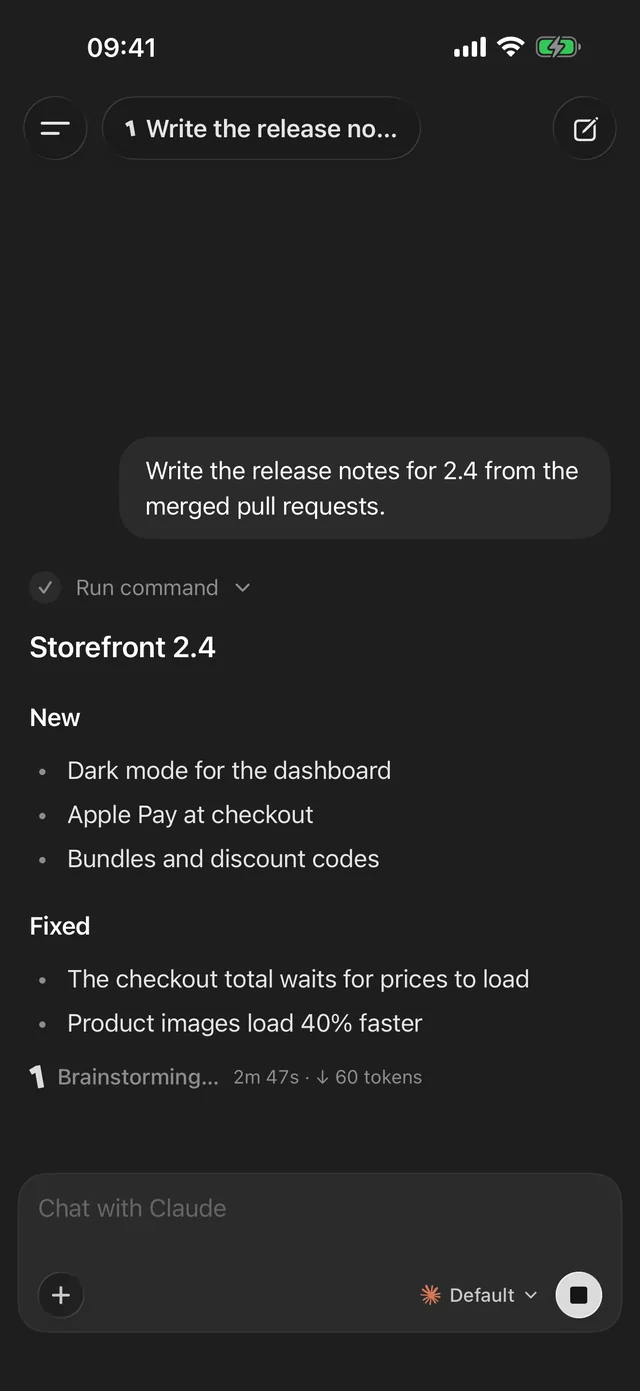

Changelog

What's new

Every OneMgl Studio release, newest first. The apps update themselves.

0.9.30
Desktop

Your messages on the right, icons in the middle

  • A message you send while Claude is still working shows as your own bubble on the right, where Claude took it in, as on the phones, no longer as a “You:” row on the left.
  • Icons sit in the middle of their buttons again: since 0.9.29 each one was drawn a little to the left.
0.9.29
Desktop
iPhone
Android

New icons, the same on every screen

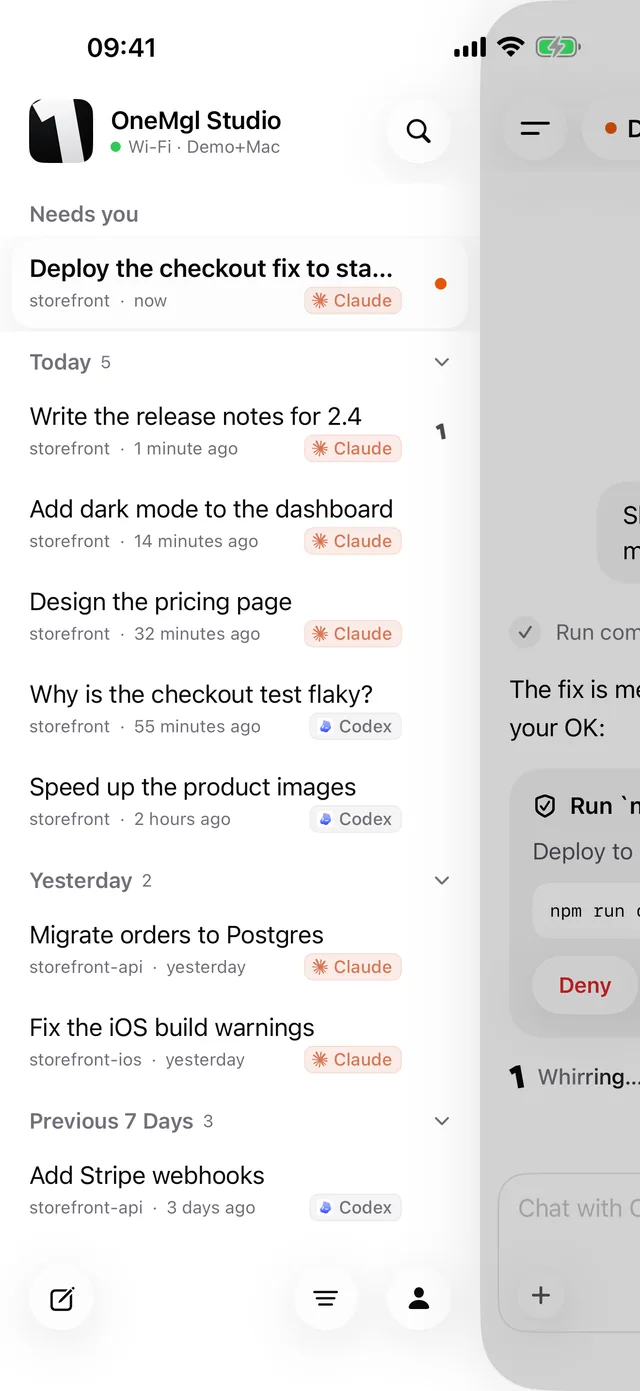
OneMgl Studio has a new set of icons, drawn the same on the computer, iPhone and Android: bold lines, filled in for whatever is on or chosen.

One set of icons everywhere

Every icon in the main window and the Agents window, in chat cards, in One Canvas's toolbar and panels, in the usage pill and in voice mode now comes from one set, and the phones use the same set in place of Apple's and Google's. Something that's on or chosen, like a pinned chat or the tab you're on, shows the filled version. One Video has them too: update it in Settings → Extensions.

Also in this release

  • On Android, Send to another chat and Hand over no longer close the app.
0.9.28
Desktop
iPhone
Android

Send to another chat, and hand over to another computer

Your chats can reach each other now: send an answer to another chat, on this computer or any other, and from your phone hand a chat's work over to another computer, where a new chat carries on.

Hand over to another computer

On your phone, a chat's session sheet has Hand over to another computer. Pick the computer: it finds its copy of the same repository by itself. The chat's agent commits its work, pushes it to a branch and writes a note of what's done and what's next. Then a new chat starts on the other computer, switches to that branch and carries on from the note and your message. A strip over the chat shows how it's going and opens the new chat. Both computers need 0.9.28.

Send to another chat

Beside Copy under an answer, Send to another chat picks one of your chats, adds a message of your own, and sends it there as yours, saying where it came from. An idle chat starts on it at once; a working one reads it after its turn. On the computer it lists that computer's chats; on the phones, the chats on every computer you've paired.

Every computer in your sessions list

On the phones, every computer you've paired shows in the sessions list, and one with no sessions says why: none there yet, still connecting, or not connected. Sorted by computer, each computer's sessions sit in projects that fold on their own.

Also in this release

  • The phones have a copy button under each finished answer, as on the computer.
  • Connect a service has Cloudflare: agents reach your whole Cloudflare account (DNS, Workers, R2 and more) after one sign-in on the computer.
0.9.27
Desktop
iPhone
Android

Connect a service, and agents that work as a team

Connect Linear, Notion, GitHub and 94 more services, let an agent bring other agents into its chat, tell an agent what to do instead of only saying no, and play audio and video right in the chat.

Connect a service

Settings → MCP Servers opens with 97 services by kind, with their logos and a search. Pick one and connect it with a click, a sign-in in your browser or a pasted key, and every agent can use it: Claude, Codex, OpenCode, Grok and the rest. Its page shows whether it works and its tools, with Test again and Disconnect. On the phone, Settings → Services lists them with their state, and turns them on or off.

Agents that work as a team

An agent can bring another agent into its chat, send it a message, or ask it something and wait for the answer: OpenCode fixes the bug, a second OpenCode writes the tests, Claude reviews. You're asked once per session before the first one joins. Each agent has a chat of its own in the session. On the phone, a strip over the chat names them, shows who's working and who's waiting for you, and opens each one's chat.

Say no, and what to do instead

When an agent asks to run something, the card has a field to tell it what to do instead. It skips that step, hears what you said and carries on, and the chat keeps your words under the skipped step. On the computer and the phones.

Audio and video in the chat

When a reply points at an audio file or a video on your computer, it plays right there: play and pause, a bar to drag, and 1×, 1.5× or 2×. Videos also go full screen. The phones play them too, and Android now plays videos.

More agents

Cursor, GitHub Copilot, Gemini, Devin, Junie, Kiro, Factory Droid, Cline, Kilo and Qwen Code join the agent picker, each with its logo, once its command-line tool is on your computer. Settings → Agents has a card for each with how to install it, Muse (Meta's Muse Code) can be added there, and any other agent in the ACP registry is one click away under Your own agents.

Also in this release

  • After a brief connection hiccup, your phone reaches your computer again on its own, with no need to restart the app on the computer.
  • Settings → Agents lists the agents on your computer first, and the rest under More agents.
0.9.26
Desktop
iPhone
Android

Kimi, and your own Claude Code

Add Kimi from Settings, use the Claude Code and Codex already on your computer instead of a 600 MB download, and hear about new versions on your phone.

Kimi, an agent you add

Settings → Agents → Kimi → Add downloads Moonshot's Kimi Code for your computer, and it joins the agent picker within seconds. Sign in checks a code in your browser. Its 5-hour, weekly and monthly limits show in the usage strip, Settings → Usage and the phone's Usage sheet. If you already have kimi installed, OneMgl Studio uses yours.

Your own Claude Code and Codex

If Claude Code or Codex is already on your computer (Codex also comes inside the ChatGPT app), OneMgl Studio runs it instead of downloading its own copy: about 1 MB to set up instead of 260 MB for Claude and 325 MB for Codex. Its own copy, if it had one, is deleted once it's no longer used.

Every agent gets the chat's size and its / commands

Grok, OpenCode, Antigravity, Kimi and any agent you add now show how full the chat is, offer their own commands after /, and compact long chats at the size set in Settings → Agents, like Claude. Antigravity's two weekly limits show in the usage strip, Settings → Usage, the phones and the island.

New versions, on your phone

When a new version comes out, your phone gets one notification saying what's new, and tapping it opens that release here. Your computer shows the same news the first time it opens the new version. Turn it off in Settings → Notifications → New versions.

Also in this release

  • On the phones, what you were typing stays with its chat and comes back when you return to it.
  • On Android, opening a chat's design or page tab no longer closes the app.
  • Live cards in chats show a red Live chip.
  • On the usage island, the cup or backpack for Stay awake sits at the right, after the percentage.
  • Old versions' caches are cleared after a week, so updating often doesn't fill your disk.
0.9.25
Desktop
iPhone
Android

Stay awake

Your computer no longer falls asleep in the middle of an agent's work, even with the lid closed, and you can switch it from your phone.

Keep awake

While Keep awake is on, your Mac and its display don't sleep as long as the lid is open and OneMgl Studio runs. Turn it on from the usage island's panel, Settings → Usage, the command palette (Stay Awake) or the phone's Usage sheet.

Backpack: awake with the lid closed

Backpack keeps your Mac working with the lid closed on battery, so agents carry on while it's in your bag. It asks for your admin password once, stays on after you quit, reminds you after an hour and turns itself off at 10% battery. On the iPhone, a Shortcuts action puts it on the Action Button.

Linux and Windows computers on your account

Linux and Windows computers now show in Settings → Account → Where you're signed in and on your phones, with when each was last used, like Macs. Every computer reports its OneMgl Studio version.

Also in this release

  • Settings are tidier: Browse sits just above Extensions, and the Mac app menu is About, Check for Updates, Settings… (⌘,), Hide and Quit.
  • Fewer leftovers from VS Code in the Agents window: no View Mode in a chat's menu, no New button in the title bar (the sidebar has it) and no "Choose how you want to use Claude" banner.
  • New chats run on this computer, with a plain folder list (Chat and Open Folder…), and the model picker waits for your agent's models instead of offering GitHub Copilot's sign-in.
0.9.24
Desktop
Android

Switch a chat to another agent

A chat no longer ends when its agent runs out. Carry it on with another agent, and let Claude use every account you have.

Switch Agent

The same chat goes on with another agent, from Claude to OpenCode and back, and the new one gets the conversation so far. On the computer it's Switch Agent…, on the phone "Continue this chat with", and when a chat's agent is out of usage you're offered "Continue with OpenCode".

Claude uses an account to its very end

When Claude stops because an account hit its limit, Claude Code moves to your saved account with the most room and the chat carries on in the same turn. Your other open Claude chats follow at their next message.

Live progress for long tasks

A release, a deploy or a long build shows as a progress card that updates itself while the work runs, on the computer and on the phone, with no new message.

0.9.23
Desktop
Android

Settings, reorganized

Pages in groups, with search

Settings are pages in groups: General is now Appearance, Agents and Chats. A search finds a page or a single setting and scrolls to it, and Account lists where you're signed in, so you can remove a device.

Settings on the phone

The phone's Settings is a list of pages named like the computer's: Account, Usage, Appearance, Chats, Notifications, Voice, Computers, Vault and About.

Phones join right away

When a phone asks to join through your account, the computer hears about it the moment it asks, where it used to check every 15 seconds.

Also in this release

  • The sessions list keeps the open session highlighted, even after a click on its empty space.
  • About OneMgl Studio shows the app icon.
  • In the dark look, the avatar's person icon and the Stop button's square are black on white, no longer dim grey.
0.9.22
Desktop
Android

Profile photos

Your photo, everywhere you're signed in

Add, change or remove your photo from Settings → Account on the computer (click the avatar) or from the profile sheet on the phone. It's kept on your account, so the sidebar and the phones show it too. Accounts without a photo show a person icon instead of initials.

One round Stop button

The prompt box's Stop button is the same round button as Send, with a solid square, as on the phone.

Also in this release

  • "Finish setting up" no longer shows 1 when everything is done.
  • Creating an account from the computer's welcome screen works again.
0.9.21
Desktop
Android

The usage island, and website logins in the Vault

Usage island

A black pill around your Mac's notch shows your agent's logo and how much of its limit is used. Click it for every agent's accounts and limits, with Switch and Log in again. Turn it on in Settings → Usage.

Website logins in the Vault

The browser offers to keep a password you sign in with, and fills it in later. An agent can be signed in to a site after you allow it, from the computer or the phone, without ever seeing the password. Saved cookies are encrypted on disk.

Also in this release

  • Settings → Usage shows your accounts as cards, as on the phone, with reset times like "1d 4h".
0.9.20
Desktop
iPhone
Android

Widgets in chat

Agents can answer with more than text, and the Vault comes to the phone.

Cards, tables, charts and reply buttons

Agents put cards, stats, lists, tables, charts and reply buttons in their answers, drawn in OneMgl's own look on the computer and the phones. A card written again updates in place.

The Vault from your phone

When an agent asks to use a secret, answer from the computer or the phone: Allow once, Allow for 10 minutes or Deny. Every chat has the Vault now, including ones started on the phone.

Usage on the phone

The Usage sheet has a card per account, with each limit's bar, percent and time to reset, in light and dark.

Also in this release

  • Claude's answer when a background task it started finishes now shows in the chat.
  • A new chat from the phone can browse for its folder on a computer that has no sessions yet.
0.9.19
Desktop
iPhone
Android

Sign in with Google or Apple

Google and Apple sign-in

Sign in to OneMgl with Google or Apple from the computer's welcome screen and Settings → Account, and with Google on the phone.

A chat's size on the phone

A Claude chat shows how full its context is, as on the computer: a ring by the model (tap it for the details) and the chat's size on the usage strip, with New chat suggested past 200k tokens.

Also in this release

  • Sign-in is required in every window, including editor windows.
0.9.18
Desktop

Linux and Windows update themselves

Updates on every computer

Like the Mac app, OneMgl Studio on Windows and Linux downloads new versions in the background and installs them when you click Update. Copies from before 0.9.18 move to it by hand, once.

One Browser

An optional extension in Settings → Extensions: agents test your web apps in a real Chrome with its own profile (open, read, click, type, screenshots, phone size, dark mode), within site rules you control.

The Vault

Settings → Vault keeps API keys encrypted on your computer. Agents use them without seeing them, after you allow it.

0.9.17
Desktop
iPhone
Android

One Board, your own agents, and cheaper long chats

One Board

The first optional extension, from the new Settings → Extensions: a board of every project's tasks. A card starts an agent session, shows its live status and moves to Review when the agent is done.

Your own agents

Settings → Agents → Your own agents adds any command-line agent that speaks the Agent Client Protocol. Cursor, GitHub Copilot, Kiro and Gemini CLI fill in with one click, and they show up on the computer and the phone with their own models.

Long chats cost less

Settings → General → Compact long chats at (300k tokens by default) sets when Claude summarizes a chat's older part. Past 200k tokens, the usage strip suggests a new chat for a new task.

A notifications bell

A bell at the top right of the Agents window (or ⌥⌘N) opens your notifications and counts what arrived while they were closed.

Also in this release

  • Fixes 0.9.16, which didn't start on some computers.
  • One Video moves to Settings → Extensions, like One Board.
0.9.16
Desktop
iPhone
Android

Free AI out of the box, and a simpler setup

OpenCode on every computer

OpenCode installs by itself, so its free models work without any account. New chats start on an agent that can run, on the computer and the phone.

Set up this computer, one step at a time

Setup is a set of slides, one per step, each with a picture, a plain sentence and one button. One "Choose your AI" slide offers Claude, Codex and OpenCode.

Also in this release

  • Your computer shows on the phone and your account by its own name, not its network address.
0.9.14
Desktop
iPhone
Android

Several computers on one phone

Every computer, connected at once

Pair the phone with several computers and see every computer's sessions in one list, with "Needs you" across all of them and each computer's name on its rows. A new chat picks its computer, and notifications open on the computer they came from.

The phone's sessions list

Connect without a QR code

The phone lists the computers on your OneMgl account. Connect shows a 6-digit code, and the computer asks you to allow it.

Pick the thinking level

The phone's model menu picks how hard the model thinks and shows it, as in "Opus 5.5 · High".

Also in this release

  • The apps say "computer" and "phone" instead of "Mac" and "iPhone".
0.9.13
Desktop
iPhone

Antigravity joins the agents

Antigravity

Google's Antigravity CLI works next to Claude, Codex, Grok and OpenCode, with its Gemini, Claude and open models, approvals and Plan Mode, on the computer and the phone.

Usage for every agent

The usage strip over the prompt box shows for Grok and OpenCode chats too, not only Claude and Codex.

Also in this release

  • A chat started from the phone shows its agent's badge in the sessions list.
  • Change counts show only in a session's hover, for a calmer list.
  • On the phone, a session's status sits in a column before its title, as on the computer.
0.9.12
Desktop
Android

A calmer, lighter app

One working indicator

Everything that shows work in progress is the OneMgl mark, breathing, and a window's animations pause while you're in another one. A window with an agent at work uses about a third of the processor it did.

Set up this computer

On first run you sign in to OneMgl, then a checklist finds what the computer already has (Claude Code, Codex, git) and sets up the rest a click each.

Also in this release

  • Android's dark mode works, with proper icons.
0.9.11
Desktop
iPhone

Intel Macs, and direct Wi-Fi

  • OneMgl Studio runs on Intel Macs too, signed, notarized and updating itself like the Apple silicon app.
  • On the same Wi-Fi as your Mac, the phone app connects directly, wherever you paired it.
  • A window that opens while the app restarts after an update gets its slash commands and suggestions as soon as the agents are ready.
0.9.10
Desktop
iPhone

Agents see your images

  • Images you attach in a chat now reach the agent: Claude, Grok and OpenCode see them. /attach opens the file picker.
  • Grok in Plan Mode shows its plan for you to approve, then builds it.
  • On iPhone, opening a chat full of screenshots takes a quarter of the work it used to.
0.9.9
Desktop
iPhone

Voice Conversation

  • Voice Conversation: talk with your chat's agent hands-free, on iPhone and in the Mac's Agents window. Turn it on in Settings → Voice.
  • Screenshots and images an agent reads show right in the chat, on the Mac and on the phone.
  • The iPhone app streams with half the CPU, keeps a chat of screenshots in a seventh of the memory and reconnects faster.
  • Allow and Deny on a notification answer the agent within seconds.
0.9.8
Desktop
Android

Notifications on Android

  • Your Mac sends notifications to the Android app too, end-to-end encrypted, when an agent needs you, finishes or fails.
0.9.7
Desktop
iPhone

Messages stay where Claude read them

  • A message you send while Claude is working stays where Claude picked it up, and another Claude Code session's messages show under its own name.
  • The phone app's open chat sits on Liquid Glass in the sessions list.
0.9.6
Desktop
iPhone

Liquid Glass on iPhone

  • The phone's Browser tab opens pages in the phone's own browser, even ones on your Mac's localhost.
  • The iPhone app's buttons are iOS 26's Liquid Glass, and it opens with an animated launch.
0.9.5
Desktop
iPhone

Time and tokens on every answer

How long, and how much

See how long an agent has worked and how many tokens it used, on every answer, on the Mac and the phone.

An answer on the phone with its time and tokens

Also in this release

  • The phone app gets slash commands, and a chat's Canvas, Video and Browser as tabs, with the Mac's page live.